
If you're not seeing a student's data in your reports, it's almost always one of three things: they haven't completed enough quizzes yet, they're signed into a different account than the one linked to your class, or your report's date range needs adjusting. This guide walks through how to check each one.
📑 Table of Contents
- Quick Checklist
- 1. Has the Student Completed the Benchmark and an Additional Quiz?
- 2. Is the Student Signed Into the Right Account?
- 3. Is Your Report's Date Range Set Correctly?
- Related Articles & Resources
✅ Quick Checklist
Work through these in order. Most missing-data cases are solved by the first one or two checks.
- Benchmark + 1 quiz: Has the student completed the pretest and at least one additional quiz?
- Right account: Is the student signing in with the account that's actually linked to your class?
- Date range: Is your report's date range set to include when the student was active?
1. Has the Student Completed the Benchmark and an Additional Quiz?
📌 Note: A student's data will not appear anywhere in your reports until they've completed the benchmark and at least one additional quiz. This allows our system to generate graphs and charts on the progress report.
To check if a student has completed the benchmark:
- Go to My Students.
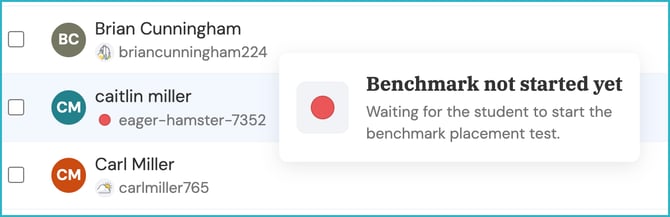
- Look for a colored circle next to the student's name. Hover over their name for more details.
- A green circle means they've completed the benchmark.
.png?width=670&height=197&name=complete%20benchmark%20(1).png)
- A red circle means the student has not yet completed the benchmark.
- A green circle means they've completed the benchmark.
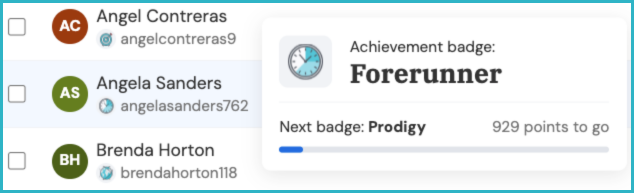
An Achievement Badge next to a student's name indicates that they have completed the benchmark and additional quizzes. The badge indicates a student's Knowledge Point status.
💎 With Premium, you can also see the student's last login date under the Last Seen column. This helps you confirm whether, and when, the student has signed in at all. 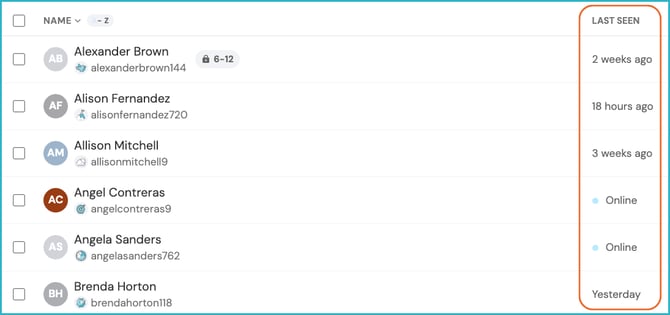
If the benchmark is complete but data still isn't showing, the student likely hasn't finished an additional quiz yet. Once they complete one more quiz after the benchmark, their data will begin to populate.
For a deeper look at pretest scores specifically, see Locating and Analyzing Pretest Scores.
2. Is the Student Signed Into the Right Account?
Students must be linked to your class for you to see their data. If a student appears to be doing work but their data still isn't showing up, they may be signed into an account that isn't linked to your class at all.
⚠️ Common cause: A student creates a duplicate account by signing in with Google, Microsoft, or another Single Sign-On (SSO) option when the account originally linked to your class was not set up with SSO. ReadTheory sees these as two separate accounts.
Check out Adding Students and Creating Student Accounts for more information on how to add students.
To check which account a student is using:
- Have the student sign in to their account.
- Select their name in the top-right corner and select Edit Profile.
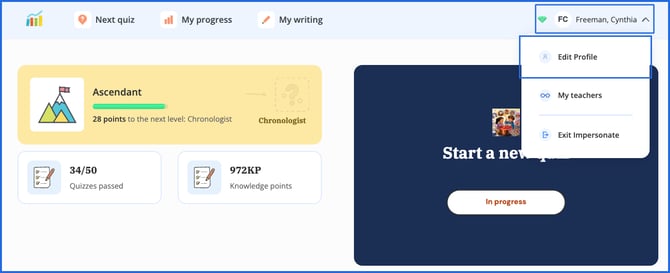
- Note the username and/or email shown. Compare it to the username on your class roster in My Students.
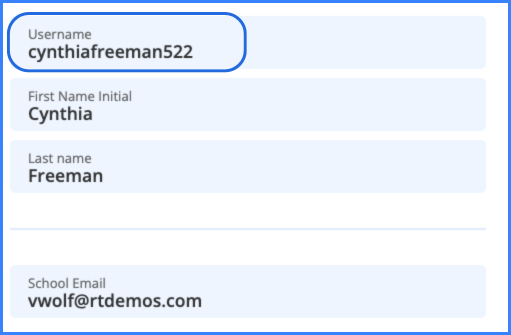
If the username is different from the one on your roster, the student is signed into an unlinked account. Have them connect to your class using How to Connect to a Teacher through Class Code.
3. Is Your Report's Date Range Set Correctly?
Even when a student has completed enough quizzes and is linked to the right account, data can still appear to be missing if your report's date range doesn't cover the period you're looking for.
To adjust your date range:
- Go to Progress Reports.
- Select the class or student report you'd like to view.
- Adjust the date range on the right side of the screen to cover the period you want to check.
.png?width=670&height=413&name=date%20range%20individual%20report%20(1).png)
📌 Note: Free accounts can only view data from the last 30 days. Premium accounts have access to all historical data. If a free-account teacher is looking for older activity, that data won't be retrievable, even with the date range adjusted.
Related Articles & Resources
Locating and Analyzing Pretest Scores
How to Connect to a Teacher through Class Code
Adding Students and Creating Student Accounts
Have questions? We're here to help. Reach out anytime at support@readtheory.org.