---
title: Assigning Activities
description: Learn how to assign reading activities in ReadTheory—set weekly goals, assign specific passages, or start a friendly classroom competition.
---
[Skip to content](https://help.readtheory.org/activities#main-content)
English
Show submenu for translations
[](https://readtheory.org/)
Open main navigation
Close main navigation
- English
Show submenu for translations
How can we help you?
- There are no suggestions because the search field is empty.
1. [ReadTheory Knowledge Base](https://help.readtheory.org/?hsLang=en)
2. [Using ReadTheory](https://help.readtheory.org/using-readtheory?hsLang=en)
# Assigning Activities
## Create recurring goals, assign specific passages, or start a classroom competition—all from the Activities tab. 📚
ReadTheory adapts to each student’s level automatically, but the Activities feature lets you take control by setting goals, assigning passages, or launching competitions to boost engagement and structure learning.
### 📑 **Table of Contents**
- [Assigning a Recurring Weekly Activities](https://help.readtheory.org/activities#recurring)
- [Assigning a Specific Passage](https://help.readtheory.org/activities#specific-passage)
- [Starting a Classroom Competition](https://help.readtheory.org/activities#competition)
- [Benchmark Test](https://help.readtheory.org/activities#pretest)
- [Viewing and Understanding Activity Data](https://help.readtheory.org/activities#viewing-understanding-activity-data)
- [Related Articles & Resources](https://help.readtheory.org/activities#related)
---
### Recurring Weekly Activities
Recurring Weekly Activities set a standing quiz goal for your class that automatically resets each week. Once it's created, you don't need to reassign it. Students see the same ongoing goal (for example, "complete 5 quizzes") week after week until you cancel it.
Use Recurring Activities to create ongoing reading routines that refresh automatically each week.
**How to Create a Recurring Activity:**
1. Go to the **Activities** tab and click **Create New Activity.**
** **
2. Select **Recurring Activity. **
3. Select a **whole class** by checking the checkmark next to the class,or select the **dropdown arrow **next to a class to select **individual students** within the class. Click **Continue. **
4. Select **Complete Quizzes** or **Pass Quizzes **and **adjust the number of quizzes** for the recurring activity. Click **Continue **again. 
5. Edit the **start date**, **end date**, and **times** for the recurring activity. Click **Continue. **
6. Check over the Recurring Activity details, and select **Create Activity. **
**Settings:**
- **Free users:** 4 quizzes per week (Monday to Sunday, EST), the same weekly cap that applies across all activity types for Free accounts.
- **Premium users:** Choose the number of quizzes with no weekly quiz cap.
**💡 Tip:** To cancel a recurring activity, go to the **Activities** tab, click the three dots next to the activity, and select **Cancel**.
**How Students Complete a Recurring Activity:**
Once a Recurring Weekly Activity is created, students are automatically enrolled.
As students complete passages and quizzes, their progress is automatically counted toward the activity goal. No additional action is required from the student beyond completing their assigned reading.
✅Students can access the activity and track their progress at any time from the **My Progress** tab in their ReadTheory account.
---
### Assigning a Specific Passage
Assigning a Specific Passage lets you choose one passage for the whole class (or selected students) to read and quiz on, in addition to working through their own adaptive queue.
It's great for whole-class discussion of the same article, alignment with other content areas, small-group work, or engaging students with a high-interest piece.
**How to assign a Specific Passage:**
1. Go to the **Activities** tab and select **Create New Activity.**
****
2. Select**** Specific** Passage. **
3. Select a **whole class** or select the **dropdown arrow** next to a class to select **individual students**. Click **Continue. **
4. Select the **passage **you would like to assign. **Filter** passages by theme, skill, or grade level. Click **Continue** again.
*Free accounts can choose from the Free content catalog; Champion/School Plan subscribers can choose from the whole catalog.* 
5. Edit the **start date**, **end date**, and **times** for the recurring activity. Click **Continue. **
6. Check over **Specific Passage** details, and select **Create Activity. **
**📌 Note:** Free accounts can choose from ReadTheory's free passage library; Premium accounts can choose from the full passage catalog.
**How Students Complete an Assigned Passage:**
Once a Specific Passage is assigned, students will see a notification of the assigned passage on their homepage.
Please note that if a student is currently working on a passage, they will need to complete that passage first before accessing the assigned passage.
✅Students can access the activity and track their progress at any time from the **My Progress** tab in their ReadTheory account.
---
### Starting a Classroom Competition
Motivate students with a fun Knowledge Points challenge!
A Classroom Competition turns a set time period into a friendly contest: students earn Knowledge Points for every quiz they complete, and whoever earns the most by the end wins.
**How to Assign a Classroom Competition:**
1. Go to the **Activities** tab and click **Create New Activity.**
****
2. Select **Competition. **
3. Select a **whole class** or select the **dropdown arrow** next to a class to select **individual students**. Click **Continue. **
4. Edit the **start date**, **end date**, and **times** for the competition. Click **Continue. **
5. Check over or edit the Competition details and select **Create Activity. **
**👑 Whoever earns the most Knowledge Points during the competition wins!**
**How Students Complete a Competition:**
Once a Competition is assigned, students are automatically enrolled. They will see a notification of the competition on their home page.
Students work to complete quizzes and earn Knowledge Points during the assigned time frame.
✅Students can access the activity and track their progress at any time from the **My Progress** tab in their ReadTheory account.
---
### Benchmark Test
The Benchmark Test lets you measure a student's reading level at any point in time, using the same initial benchmark assessment they took the first time they signed into ReadTheory. It's useful if you want to re-check their reading level without affecting the quizzes and progress they've already completed. This is a great tool for progress monitoring!
**How to Assign the Benchmark**
1. Go to the **Activities** tab and click **Create New Activity** and select **Benchmark Test. **
2. Select a **whole class** or select the **dropdown arrow** next to a class to select **individual students**. Click **Continue. **
3. Edit the **start date**, **end date**, and **times** for the recurring activity. Click **Continue. **
4. Check over or edit the Benchmark Test details and select **Create Activity. **
**How Students take the Benchmark:**
Once a Benchmark is assigned, the selected student(s) will be prompted to take the benchmark the next time they log in.
❗ Their existing quiz history and progress **will not be reset**. You will just see another data point in the Benchmark Test report.
📊 The new results will populate in the **Benchmark Test report**, so you can compare a student's reading level over time.
---
### Viewing and Understanding Activity Data from the Activities Dashboard
All activity data can be viewed from the **Activities** tab on your teacher dashboard. This is the primary location for managing assignments and monitoring student progress.
From the Activities tab, you can:
- View assignment progress and completion status
- Monitor student participation
- Pause or cancel activities
- Review individual student performance
⬇️To view progress for a class assignment, select the dropdown arrow next to the activity.
### 
### Understanding Activity Statuses
Each student will be assigned a status based on their progress:
- **Completed** – The student met all assignment requirements before the due date. 
- **In Progress** – The student has started working on the assignment, but has not yet met the requirements.
- **Not Started** – The student has not started the assignment or completed any requirements.
- **Missed** – The student did not complete the assignment requirements before the due date. 
- **Inconclusive** – The student took more than 10 minutes to answer two or more questions. This threshold helps ensure that activity results accurately reflect student performance. 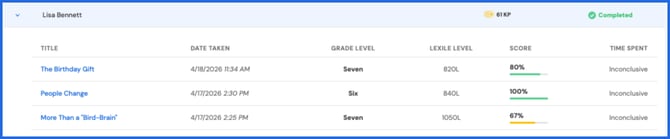
⬇️Select the dropdown arrow next to a student's name to view detailed progress for that activity.
### 
### Viewing Data from the Progress tab
Activity data is also available through the **Progress** tab.

#### View Activity Data for a Class

Under **Class Reports** on the left side of the page, select ** Activities** to view activity performance and completion data for an entire class. Select a different class from the dropdown at the top of the screen.

This report can help you identify participation trends, monitor assignment completion rates, and determine which students may need additional support.
#### View Activity Data for an Individual Student
Under **Student Reports** on the left side of the page, select **Activities** to view activity performance and completion data for an individual student.

Select an individual student from the dropdown at the top of the screen to view individual student activity data. 
---
### Related Articles & Resources
[Locating and Analyzing Benchmark (Pretest) Scores](https://help.readtheory.org/faq/what-is-the-pretest?hsLang=en)
[How to View Student Progress](https://help.readtheory.org/faq/progress-reports?hsLang=en)
[Creating Classrooms and Student Accounts](https://help.readtheory.org/faq/creating-classrooms-and-student-accounts?hsLang=en)
[What Is ReadTheory Premium?](https://help.readtheory.org/faq/what-is-readtheory-premium?hsLang=en)
---
Have questions? We’re here to help. Reach out anytime at [support@readtheory.org.](mailto:support@readtheory.org)
- [Getting Started](https://help.readtheory.org/getting-started?hsLang=en)
- [Using ReadTheory](https://help.readtheory.org/using-readtheory?hsLang=en)
- [Account & Access](https://help.readtheory.org/account-access?hsLang=en)
- [Premium, Billing & Subscriptions](https://help.readtheory.org/premium-billing-subscriptions?hsLang=en)
- [Troubleshooting](https://help.readtheory.org/troubleshooting?hsLang=en)
- [FAQs](https://help.readtheory.org/faqs?hsLang=en)
- [Reporting & Benchmarks](https://help.readtheory.org/reporting-benchmarks?hsLang=en)
[](https://readtheory.org/)
Copyright © 2026, ReadTheory LP